Product - Pricing
Resources Partnership Contact
Topics

How to set up and pair Fire TV Stick with a Digital Signage player
1. Connect your Fire TV stick to your TV

Plug the power cable into your Fire TV Stick1 and then plug the stick into your TV's HDMI port2.
It is recommended to use HMDI1 port.
Connect the other end of the power cable to the power adapter and plug it into a power outlet.
2. Sign in or Create an Amazon Account
To install our ScreenManager App on your device and start presenting content, you will need to create an Amazon account. If you already have an account, you can sign in instead.
1. Power on your TV and connect it to your screen and the internet.
A Fire TV Stick logo will appear. Press the indicated button on the Fire TV Stick remote to continue.

2. Sign in or create an Amazon account

3. Confirm the account to tie the Fire TV Stick to
Choose an account to tie your Stick to and click Continue.

4. Follow the instructions on your TV to pair your Fire TV Stick with your account
- Using the pairing code of the QR code displayed on the screen, pair your Fire TV Stick with your Amazon account.
- Choose your language.
- Choose whether to Save Wi-Fi Passwords to Amazon.
- Select your Cookie Preferences.
- Set up your Fire TV remote.
- Set up purchase and parental controls as per your preference.
Important! Make sure to remember your PIN for digital purchases, as it will be required to install ScreenManager app later.

After all settings are set up you will be directed to the landing page.
3. Install the ScreenManager App
If you have our player already installed you can skip this step.
- Navigate to the Appstore from your device's home screen.

2. Search for ScreenManager
Use the search bar to search for ScreenManager (without spaces).

3.Install the App
Once you find the ScreenManager App, select it and click Get.
You will need to enter the digital purchases PIN, if you set it up earlier.

4. Pair the Device with your Account
To enable to manage and schedule content remotely, you will need to pair your ScreenManager App with our Cloud Content Management System
Open the ScreenManager App on your Fire TV Stick device.
You'll see a pairing code displayed on the screen.
If you also see a Device Location notification (blocking the code), choose Allow.
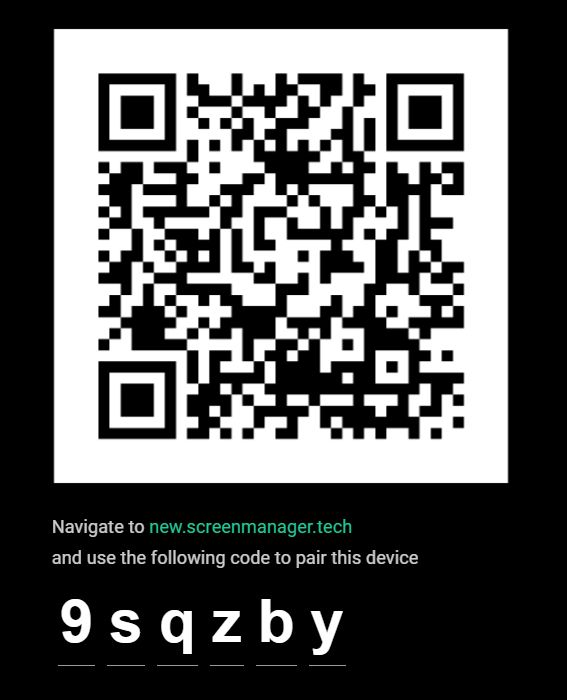
Log into your ScreenManager account.
Then go to the Screens1 section and click on the New Screen2 button.

Enter the pairing code3 you see on your Device and click Pair screen4.

5. Set up your screen
Name your screen and choose its rotation

That's it! You are ready to start presenting content on your screen.
6. Present Content on the Display
With your device paired and ready to go, you can start presenting your content.
Navigate to Media page and upload images, videos or PDF presentations. To create more complex visuals or use third-party integrations such as Instagram or RSS feed, navigate to Scenes.
Publish content to the paired displays with a single click.

- info@screenmanager.tech
- +420 604 487 886 (WhatsApp)
VAT: CZ08543682
Kurzova 2222/16 155 00
Prague, European Union